Application incidents
Let your applications report failures through the Web API. Keep the system, module, platform, and description together.
- Company client credentials
- Direct API or gateway delivery
- One place for reported incidents
 IssuesCloud
Open console
IssuesCloud
Open console
MONITOR. NOTIFY. RESOLVE.
A system to monitor and manage issues generated by all company applications, providing real-time notifications and AI-generated solutions.
A clear view from detection to resolution.
MONITORING WITH CONTEXT
Connect reachability checks and application reports to the same incident workflow. Give every alert a system, a module, and a clear description.
Let your applications report failures through the Web API. Keep the system, module, platform, and description together.
Use active System and Module subscriptions to route push notifications to users with a registered device.
Check routers, servers, and network devices with the Ping Monitor worker. Recognize a device by its name, not just its address.
YOUR NETWORK. YOUR CHECKS.
Run the worker on a host that can reach your devices. Tune how often it checks, how long it waits, and when a failure deserves an alert.
Set a consecutive failure threshold to avoid alerting on every isolated missed ping.
Choose a reminder interval during an outage, or send one alert per outage. A successful check resets the failure count.
ICMP reachability checks show whether a device responds to ping; they do not measure application health.
Configured in the worker’s settings file. Each pass completes before the next interval begins.
THE NOTIFICATION GATEWAY
Place the gateway between your applications and the Issues Cloud API. It saves accepted requests to a local queue and retries when upstream delivery fails.
Upstream unavailable? Keep it queued. Retry later.
Direct API — Send straight to Issues Cloud when your application manages delivery.
Gateway — Add a durable local queue and automatic retries. Delivery is at least once; retries can produce duplicates.
FROM SIGNAL TO RESOLUTION
Connect your environment, define who needs to know, and keep incidents moving.
Configure named IP targets in the worker, or send incidents from your applications.
Use company credentials to send through the API or a gateway with a persistent queue.
Match users to System and Module subscriptions and register their mobile devices.
Review incident details, filter Open and Closed items, and close an incident from the app.
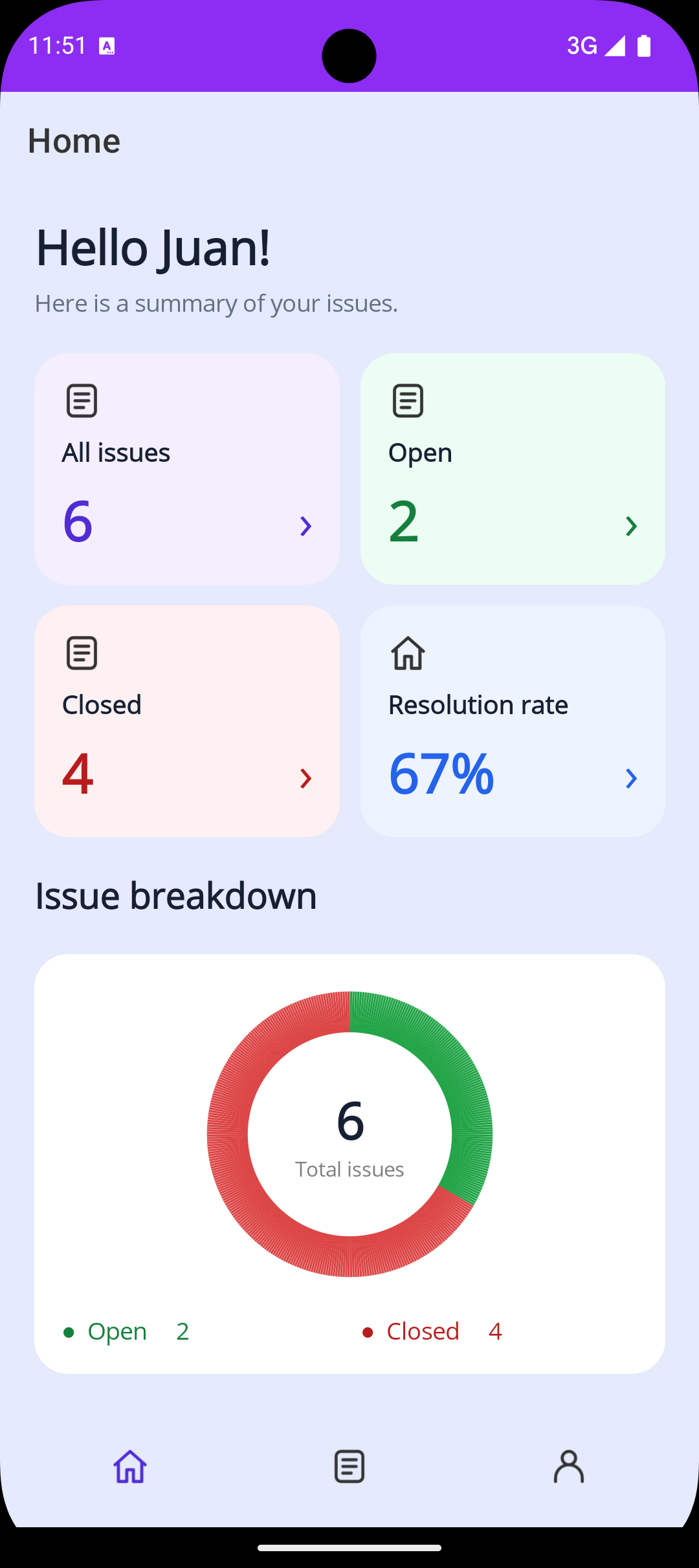
STAY CONNECTED ON MOBILE
Keep incident details close, even when you’re away from your desk. The mobile app connects push alerts with your team’s incident list.
Review your issue summary and move between Home, Issues, and Profile.
Confirm a resolution in the app and move the incident from Open to Closed.
View registered device details and queue a sample notification from the web User page.
A FEW THINGS TO KNOW
Start with a setup that matches your network and delivery needs.
The Ping Monitor worker checks named IPv4 and IPv6 addresses using ICMP. Applications can also report incidents through the Web API or gateway. Ping checks indicate reachability, not whether a website or application is functioning correctly.
Run the C# worker on a machine with network access to the IPs you want to check and permission to send ICMP traffic. Set targets, intervals, timeouts, thresholds, and credentials in its configuration, then restart it after changes.
No. The worker supports direct API delivery as well as gateway delivery. Use the gateway when you want accepted requests stored in a durable local queue and retried if the upstream API is unavailable.
The worker keeps pending alerts in memory and retries on the next pass; a worker restart clears that state. Once the gateway accepts a request, its local SQLite queue preserves it across restarts when its data directory is retained. The Web API also retries eligible Firebase delivery failures.
Active users with a registered device token and an active subscription matching the incident’s System and Module. The app needs notification permission. The current user registration stores one device token per user.
A successful ping resets the monitor’s failure count and logs recovery. It does not automatically close an existing incident. Review the issue and mark it Closed from the mobile app when it has been resolved.
LET’S TALK ABOUT YOUR TEAM
Tell us what you’d like to monitor and how we can help. Leave your email and a message to start the conversation.
MAKE THE NEXT ALERT COUNT
Monitors, gateways, and incidents. A clearer view of what needs your attention.